If you have been wondering whether you can edit videos in the Lightroom app, the answer is yes. Lightroom now lets you make simple video edits directly inside the app, including trimming clips, adjusting light and color, adding effects, and applying compatible presets.
For many creators, this is one of the easiest ways to keep photos and short videos looking consistent. Instead of switching between different apps, you can make quick edits in Lightroom and keep the same visual style across your content.
Can You Edit Videos in Lightroom Mobile?
Yes. In Lightroom mobile, you can import a video, open it in the editor, and use supported controls such as Light, Color, Effects, trimming, and presets.
How to Edit Videos in the Lightroom App
Open Lightroom on your phone and import the video you want to edit. Once the clip is open, you can start making adjustments just like you would with a photo, using the tools that are available for video.
1. Import your clip into Lightroom
2. Open the video in the edit view
3. Adjust light, color, and effects to improve the look
4. Trim the beginning or end if needed
5. Apply a compatible preset for a faster result
6. Export the final video when you are done
Can You Apply Presets to Videos in Lightroom?
Yes, Lightroom supports applying compatible presets to videos. This makes it easier to create a matching look across your photos and video content, especially for social media, reels, and short-form clips.
What Lightroom Can and Cannot Do for Video
Lightroom is useful for quick color editing and simple polish, but it is not a full video editor. It works best when your goal is to improve color, apply a preset look, and make fast edits for content creation.
- Clean up color
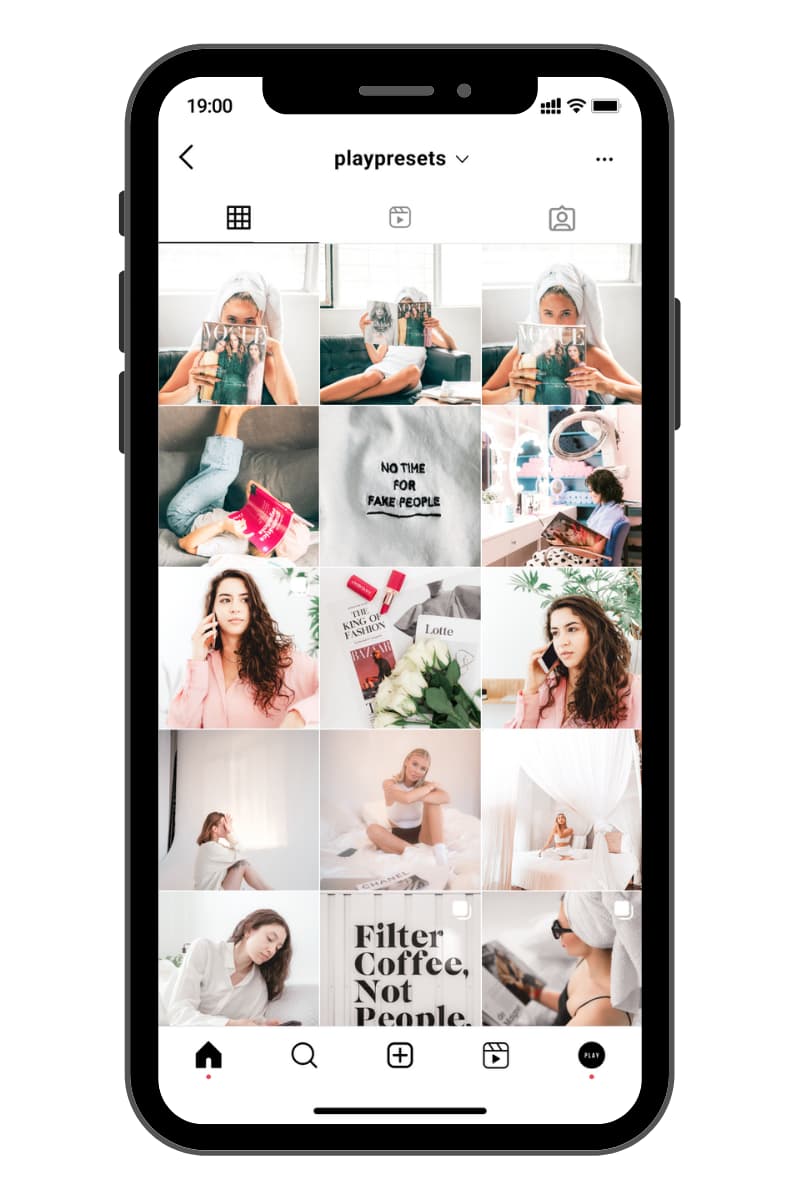
- Create a consistent aesthetic
- Apply a preset look
- Make quick edits for social media content
If you need advanced timeline editing, transitions, or multi-clip editing, you will still want a dedicated video editor.
Final Tip
If you want your photos and videos to look consistent across Instagram, TikTok, Pinterest, or your brand content, presets can save a lot of time. After editing your clips in Lightroom, you can browse our Best-Selling Lightroom Presets for Mobile & Desktop to find preset collections designed for a clean, consistent look.
Frequently Asked Questions
Can you edit videos in the Lightroom app?
Yes. Lightroom allows you to edit videos directly in the app using tools like light, color, effects, and trimming. Video editing in Lightroom requires a premium subscription.
Can you edit videos in Lightroom mobile?
Yes. Lightroom mobile supports video editing, allowing you to adjust exposure, colors, and apply effects. Access to video editing features requires a Lightroom premium plan.
Can you apply Lightroom presets to videos?
Yes. Compatible Lightroom presets can be applied to videos to create a consistent look across photos and videos. However, video editing features are part of the premium version.
Do you need Lightroom Premium to edit videos?
Yes. Editing videos in Lightroom requires a premium subscription. If you do not have access to video tools, you may need to upgrade your plan.
What can Lightroom do for video editing?
Lightroom is designed for simple video edits such as trimming clips, adjusting light and color, and applying presets. It is best for quick aesthetic edits rather than advanced video editing.
Is Lightroom good for making photos and videos look consistent?
Yes. Lightroom is widely used by creators to keep a consistent style across photos and videos, especially for Instagram, TikTok, Pinterest, and brand content.